Cold email for staffing agencies: domains, email accounts, warm-up and how many emails a day

Why cold email should never come from your main domain, how many emails one mailbox can safely send, what 14-day warm-up does, and how to grow to hundreds of emails a day, step by step in StaffingLeads.
If you send cold email to hiring managers, the number that limits you is not how many leads you have. It is how many emails your mailboxes can send in a day without landing in spam. This guide explains, in plain terms, how sending domains and email accounts work, what warm-up is, how many emails a day each account should send, and how to grow from one mailbox to hundreds of emails a day. It also shows exactly where each step lives in StaffingLeads.
TL;DR
- Don't send cold email from your main company domain. Use separate burner domains that look like your brand (for Phoenix Staffing:
getphoenixstaffing.com,phoenixstaffing1.com). If one gets flagged, your everyday email to clients and candidates is safe. - One mailbox can safely send about 30 to 50 cold emails a day. More volume comes from more mailboxes, not from pushing one mailbox harder.
- New mailboxes need a 14-day warm-up before they send campaigns. During warm-up they quietly send and reply to safe emails so Gmail and Outlook learn to trust them.
- In StaffingLeads, 12 extra email accounts on 3 new domains cost $100 a month on Hunter, and come included with Commander. We buy the domains, create the accounts and warm them up for you.
- Each pack of 12 adds up to 360 emails a day (12 accounts × 30). Add a pack about two weeks before you need the volume, because of the warm-up.
Why your main domain should never send cold email
Every email domain has a reputation with Gmail, Outlook and the other inbox providers. When people ignore your emails, mark them as spam, or your emails bounce off addresses that don't exist, that reputation drops. Once it drops, your emails start landing in spam, including the ones you send to existing clients and candidates.
Cold email will always get some of those negative signals, even when it's done well. So the standard practice is to keep cold email on separate domains that look like your brand (for example, getyouragency.com alongside youragency.com). If one of those domains has a bad week, your main domain is untouched.
How many emails a day can one mailbox send?
For cold outreach, a safe range is about 30 to 50 emails a day per mailbox, spread across the working day. A mailbox that suddenly sends 200 cold emails looks like a spammer, even if every email is personal and relevant.
That's why serious outbound teams don't send from one inbox. They send from many inboxes, each at a modest daily volume. StaffingLeads rotates your emails across all your sending accounts automatically, so you never have to manage that by hand.
Option 1: Send from your own connected mailbox
When you connect Gmail, Outlook or any other mailbox in StaffingLeads, that mailbox sends your agents' emails. You control how hard it works:
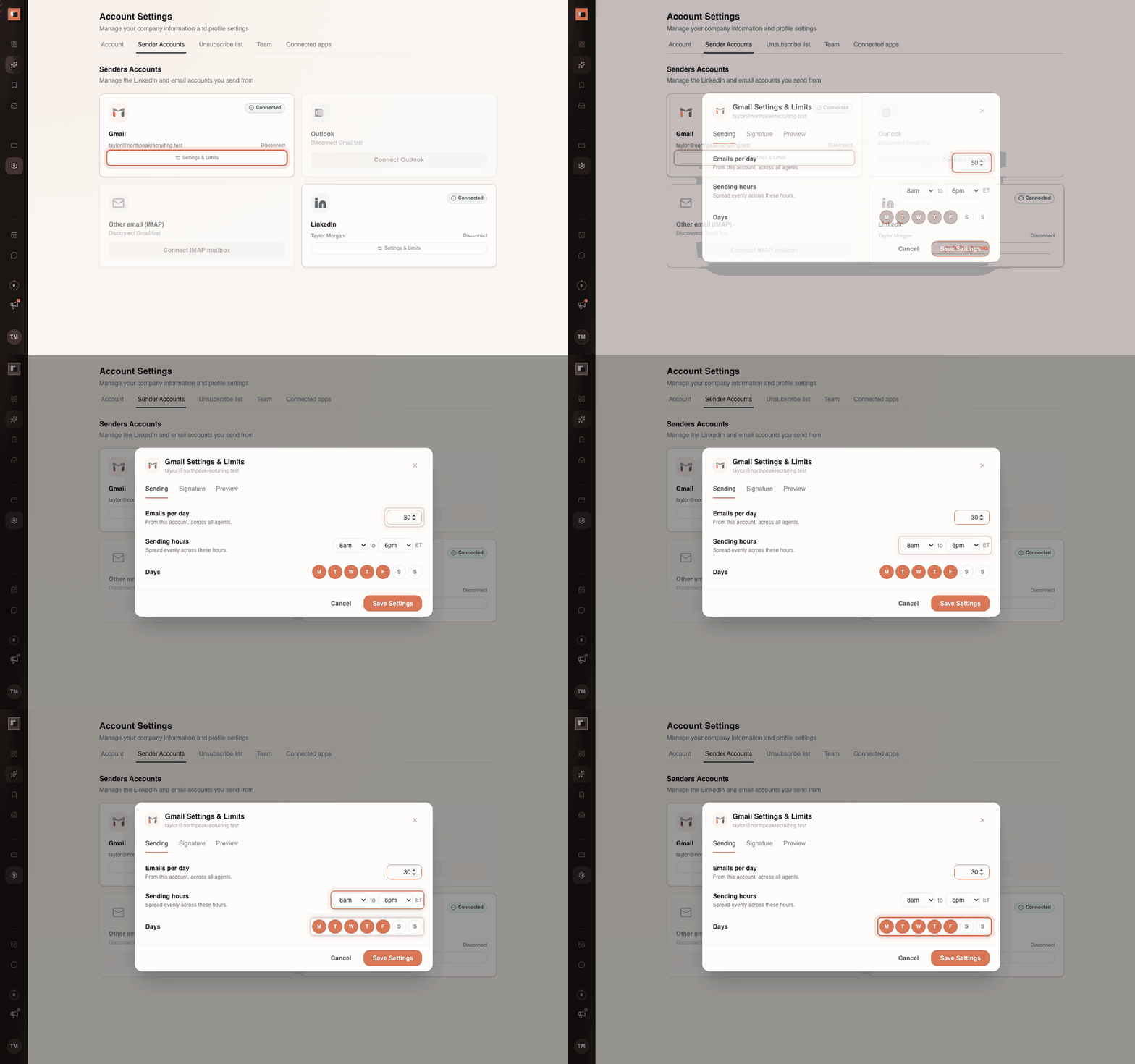
- Go to Account Settings → Sender Accounts.
- Click Settings & Limits under your email account.
- On the Sending tab, set Emails per day. The default is 50. For a mailbox on your main domain, we suggest 30.
- Set the Sending hours (emails are spread evenly across them, in Eastern time) and the Days it sends.
For everything else in that window (signature, PS line and sending yourself a test email), see our email settings guide.
One mailbox is fine when you're starting out or working a small niche. Once your agents find more leads than one mailbox can email, it's time for dedicated sending accounts.
Option 2: Add sending accounts on new domains (StaffingLeads Email accounts)
The Email accounts page in StaffingLeads (in the left menu) does the whole setup for you: buying domains, creating mailboxes and warming them up.
What you get in one pack:
- 3 new domains that look like your brand. They're
.comor.info, and each forwards to your website, so anyone who types the domain into a browser lands on your site. - 12 email accounts, 4 on each domain, all in your name (see the full example below).
- A 14-day warm-up, done for you.
- Up to 360 emails a day once warmed up (30 per account).
- Replies land in your StaffingLeads Inbox, next to your LinkedIn and main mailbox replies.
What it costs:
| Plan | Email accounts |
|---|---|
| Free trial and Scout | Not available |
| Hunter | Add-on: 12 accounts for $100/mo, as many packs as you need |
| Commander | 12 accounts included; more at $100/mo per 12 |
A worked example: Phoenix Staffing
Say your agency is Phoenix Staffing, your website is phoenixstaffing.com, and you're John Miller.
1. Your main domain stays out of cold email. john@phoenixstaffing.com keeps doing what it does today: clients, candidates, invoices. It never sends a cold email, so its reputation is never at risk.
2. You pick 3 "burner" domains for cold email. A burner domain is a separate domain used only for outreach. It looks like your brand, so prospects recognise you, but if it ever gets a bad reputation, only that domain is affected. Your main domain is untouched. For Phoenix Staffing, good burner domains look like this:
| Burner domain idea | Why it works |
|---|---|
getphoenixstaffing.com |
Your full name with a short word in front |
tryphoenixstaffing.com |
Same idea, different word |
phoenixstaffing1.com |
Your exact name plus a number |
phoenixstaffinghq.com |
Your name plus "hq" |
meetphoenix.com |
Shorter, still clearly you |
phoenixstaffing.info |
Your exact name on .info instead of .com |
You choose any 3. StaffingLeads suggests some for you and checks each one is available as you go. If a name is taken, pick another from the list or type your own.
3. StaffingLeads creates 4 email accounts on each domain, in John's name. Say John picks getphoenixstaffing.com, tryphoenixstaffing.com and phoenixstaffing1.com. He gets these 12 accounts:
On getphoenixstaffing.com
john@getphoenixstaffing.comjohn.miller@getphoenixstaffing.comj.miller@getphoenixstaffing.comjohnm@getphoenixstaffing.com
On tryphoenixstaffing.com
john@tryphoenixstaffing.comjohn.miller@tryphoenixstaffing.comj.miller@tryphoenixstaffing.comjohnm@tryphoenixstaffing.com
On phoenixstaffing1.com
john@phoenixstaffing1.comjohn.miller@phoenixstaffing1.comj.miller@phoenixstaffing1.comjohnm@phoenixstaffing1.com
Every email still comes from John Miller, with John's signature. The prospect sees a real person at a company name they recognise. If they type getphoenixstaffing.com into a browser, they land on phoenixstaffing.com, because each burner domain forwards to your website.
4. After the 14-day warm-up, those 12 accounts send up to 360 emails a day (12 × 30) on John's behalf, and every reply comes back to John's StaffingLeads Inbox.
How to order your accounts
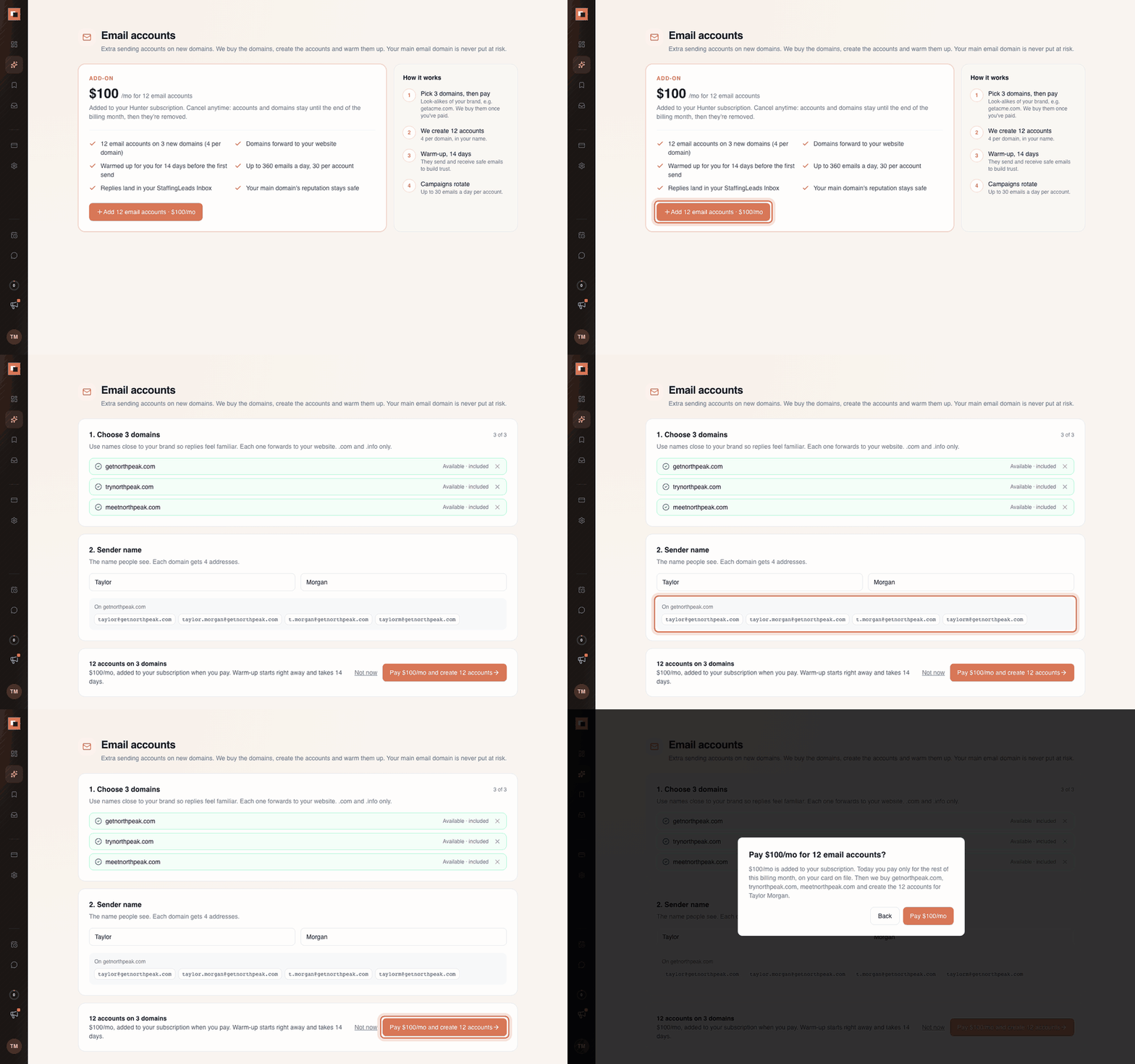
- Open Email accounts and click Add 12 email accounts.
- Choose 3 domains. StaffingLeads suggests names close to your brand (like
get,tryormeetplus your name) and checks they're available as you go. You can type your own instead, likephoenixstaffing1.com. - Enter the sender name (for example, John Miller). You'll see a preview of the 4 addresses on each domain.
- Click Pay $100/mo and create 12 accounts. Today you pay only for the rest of your billing month, on your card on file. The domains are bought only after you pay.
Picking good domain names:
- Keep them close to your real brand, so a reply or a quick search feels familiar.
getphoenixstaffing.comreads as the same company asphoenixstaffing.com. A random name doesn't. - Short and easy to read wins. A single number (
phoenixstaffing1.com) is fine; long strings of hyphens and numbers look like spam. - Don't use words that look spammy, like "free", "deals" or "leads4u".
- Never use your main domain as one of the three. The whole point is to keep it out of cold email.
What is email warm-up, and why does it take 14 days?
A brand-new mailbox has no history. To Gmail and Outlook, a new address that starts sending dozens of emails to strangers looks exactly like a spammer. Warm-up builds a normal-looking history first.
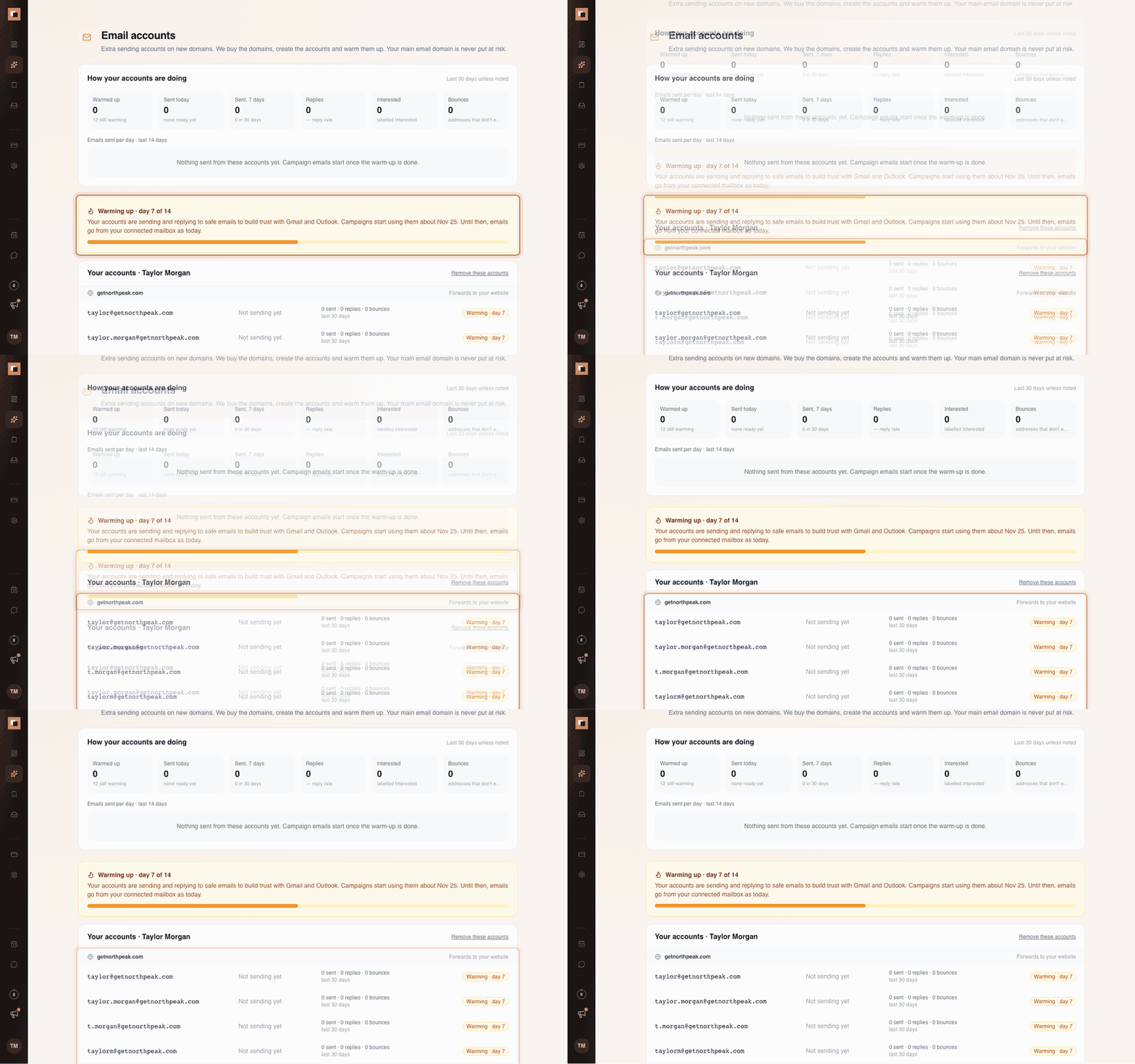
During warm-up, your new accounts send and reply to safe emails with other real mailboxes, a little more each day. Those emails get opened and answered, which is what normal business email looks like. Over 14 days, inbox providers learn that these addresses behave like real people, and they start trusting them.
While your accounts warm up:
- Your campaigns keep running from your connected mailbox, exactly as before.
- The Email accounts page shows "Warming up · day X of 14" and the date campaigns will start using the new accounts.
- Every account keeps warming in the background even after day 14. This keeps their reputation healthy while they send your campaigns.
Don't skip or shorten warm-up. Sending cold email from a new account in its first week is the fastest way to burn a domain. That's why StaffingLeads won't use new accounts for campaigns until they're ready.
After warm-up: sending, rotation and the numbers to watch
Once the 14 days are up, each account shows Ready. Your agents' email steps then rotate across all your accounts, up to 30 a day each. Each account uses the signature and sending hours from your own connected mailbox, if you have one connected. By default every agent can use every account. In an agent's settings you can pick only some accounts for it (for example, one pack for healthcare agents and another for IT).
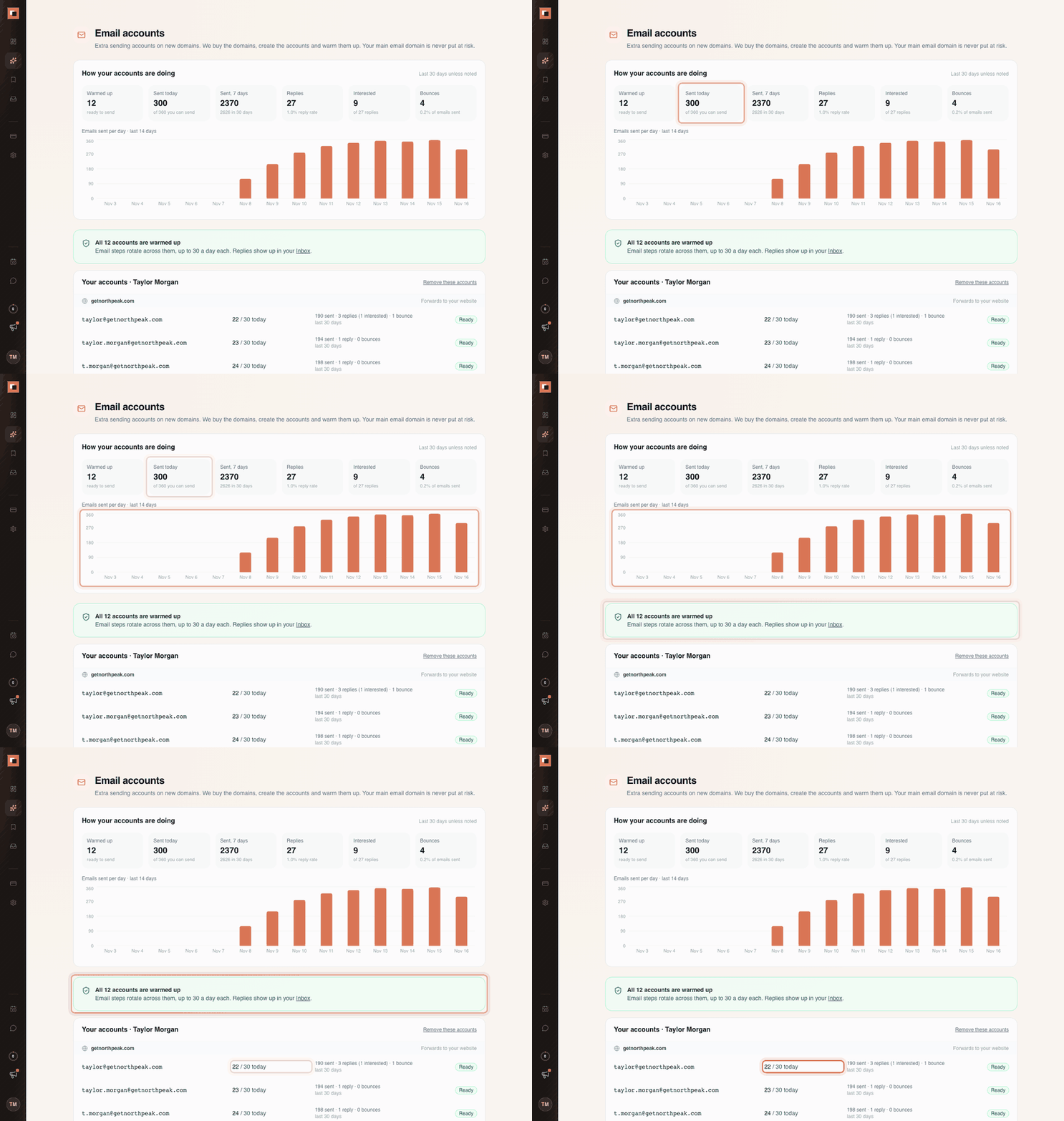
The top of the Email accounts page shows how your accounts are doing:
- Warmed up: how many accounts can send right now.
- Sent today: how many emails went out today, against how many you could send (12 ready accounts = 360).
- Sent, 7 days: your recent volume.
- Replies and reply rate: replies divided by emails sent, over the last 30 days.
- Interested: replies you labelled Interested in your Inbox.
- Bounces: emails sent to addresses that don't exist.
What good looks like:
- Bounces stay low, ideally under about 2% of emails sent. StaffingLeads only emails verified business addresses, which keeps this low. A sudden jump in bounces means something is wrong, so check it the same day.
- Reply rate holds steady as volume grows. If replies drop when you add accounts, the extra volume is going to weaker leads, not into spam. Tighten your agent's criteria rather than adding more accounts.
- No account stays stuck on "Needs attention". If one has trouble sending, StaffingLeads rests it and the others carry on.
How to scale from one mailbox to hundreds of emails a day
Work out the volume you need first, then add accounts to match.
Step 1: Estimate your daily emails. Every lead gets a sequence (a first email plus follow-ups), so:
Emails a day ≈ new leads a day × emails in your sequence
For example, 40 new leads a day with a 3-email sequence is about 120 emails a day once the sequence is running.
Step 2: Match your sending capacity:
| Your setup | Roughly how many cold emails a day |
|---|---|
| Your own mailbox only | 30–50 |
| Own mailbox + 1 pack (12 accounts) | up to ~400 |
| Own mailbox + 2 packs (24 accounts) | up to ~760 |
| Own mailbox + 3 packs (36 accounts) | up to ~1,120 |
Step 3: Scale safely.
- Add packs before you need them. A new pack takes 14 days to warm up. If you're about to launch a new agent or hire another recruiter, order the accounts two weeks ahead.
- Add accounts, don't raise limits. Pushing each account above 30 a day saves a little money and costs a lot of deliverability. More accounts is the safe way to more volume.
- Spread your brand. Each pack comes with its own 3 domains, so one domain having a bad week never stops your whole outbound.
- Keep your list clean. Verified emails, an unsubscribe list that's respected, and agents aimed at companies that are actually hiring do more for deliverability than any setting.
If you'd rather set it up yourself
You can do all of this outside StaffingLeads. It's the same work, just done by hand:
- Buy look-alike domains from a domain registrar.
- Create mailboxes on each domain with an email provider (Google Workspace or Microsoft 365, for example), usually paid per mailbox per month.
- Add the DNS records that prove you own the domain and are allowed to send from it: SPF, DKIM and DMARC. Your provider explains each one.
- Point each domain at your website so visitors don't hit a blank page.
- Run a warm-up tool on every mailbox for at least two weeks before sending campaigns.
- Connect each mailbox to your outreach tool and set its daily limit.
For 12 mailboxes, that's 3 domains, 12 sets of logins and a dozen DNS records to keep right. The Email accounts add-on exists so recruiters don't have to.
FAQ
Will the new accounts hurt my main domain? No. They're on separate domains. Even if one of them gets a bad reputation, your main domain and your everyday email are unaffected.
Do I have to write separate campaigns for the new accounts? No. Your agents keep the same campaigns. StaffingLeads just spreads the sending across all your ready accounts.
Where do replies go? To your StaffingLeads Inbox, alongside your other replies. You reply from there, and the reply goes out from the same account the lead heard from.
What happens if I cancel? Billing for that pack stops straight away. The accounts and domains keep working until the end of your billing month, then they're removed. StaffingLeads registers the domains, so they don't transfer to you when a pack ends.
What's a burner domain?
A separate domain used only for cold email, like phoenixstaffing1.com next to your real phoenixstaffing.com. It protects your main domain: if a burner domain's reputation drops, only that domain is affected, and your everyday email keeps working normally.
Can I use my own domain names?
Yes. Type any available .com or .info name instead of the suggestions.
Is 30 a day per account a hard limit? For the accounts StaffingLeads creates, yes. It's the level that keeps them safe. For your own connected mailbox, you set the limit yourself in Settings & Limits.
Related guides
Let your agent start the conversations.
StaffingLeads watches hiring, hard-to-fill, funding, leadership, past-client and network signals, finds the decision-maker behind each one, and sends personalised email and LinkedIn outreach in your voice. You pick up the replies.
Start your 3-day free trial →Keep reading
Free, no signup